Hire Us
Documentation

SCF Gallery Docs

Setup guides, tips and answers for SCF Gallery. Search below or jump to a topic in the guide.
SCF Gallery
WordPress Plugin · Version 1.0.0
View Product →
In This Guide

Requirements

Before you install SCF Gallery, make sure your site has:

  • WordPress 6.0 or newer;
  • Secure Custom Fields (SCF) installed and active;
  • PHP To fill in: minimum PHP version.

SCF Gallery is free. There is no license key to buy or activate.

Install the Plugin

  1. In your WordPress admin, go to Plugins → Add New Plugin.
  2. Search for SCF Gallery.
  3. Click Install Now, then Activate.

You can also download the .zip file from the SCF Gallery page on WordPress.org and upload it under Plugins → Add New Plugin → Upload Plugin.

Tip: Activate Secure Custom Fields first. SCF Gallery adds its field to SCF, so it needs SCF to be running.

Add a Gallery Field

  1. Go to SCF → Field Groups and open a field group, or click Add New.
  2. Click Add Field and choose the field type To fill in: exact field type name, for example Gallery.
  3. Give it a label and a name, for example Project Gallery and project_gallery.
  4. Under Settings → Location Rules, choose where the field appears, for example Post Type is equal to Page.
  5. Click Save Changes.

Now edit a post or page that matches the location rule. Add images to the gallery field from the Media Library, drag them into the order you want, and click Update.

Choose a Layout

SCF Gallery can show a gallery in three ways:

  • Slider: one image at a time that visitors click or swipe through.
  • Lightbox: thumbnails that open full size over the page.
  • Masonry: a grid that fits images of different sizes neatly together.

Where to choose it: To fill in: the field setting or shortcode option that sets the layout.

Show the Gallery on Your Site

To display a gallery field on the front end, use: To fill in: the shortcode or PHP function that outputs the gallery, with an example.

Place it in the page content, a widget, or your theme template where the gallery should appear.

Update the Plugin

New versions come from WordPress.org and appear in Dashboard → Updates and on the Plugins screen, like any other plugin. Click Update Now, or turn on auto-updates for SCF Gallery on the Plugins screen.

Tip: Back up your site before updating any plugin. Release notes are on the Changelog page.

Troubleshooting

  • The gallery field type is missing: check that both Secure Custom Fields and SCF Gallery are active.
  • Nothing shows on the page: check that the field name in your shortcode or template matches the field, and that the post has images saved.
  • The lightbox or slider does not work: clear your cache and turn off JavaScript minifying or combining in your cache plugin, then test again.

Still stuck? Open a support ticket and include your WordPress, SCF and SCF Gallery versions.

No articles for this product yet. Our developers can help in the meantime.

Can’t Find What You Need?

Our developers answer every ticket, usually within one business day.

Need a Custom Plugin
or Shopify App?

Premium WordPress plugins and Shopify apps, built and supported by Golden Info Systems Ltd., Dhaka.
support@gplagfy.com
© 2026 Gplagfy · Golden Info Systems Ltd.
Follow Us :
Optivo Product Options icon
Optivo
Product Options for Shopify
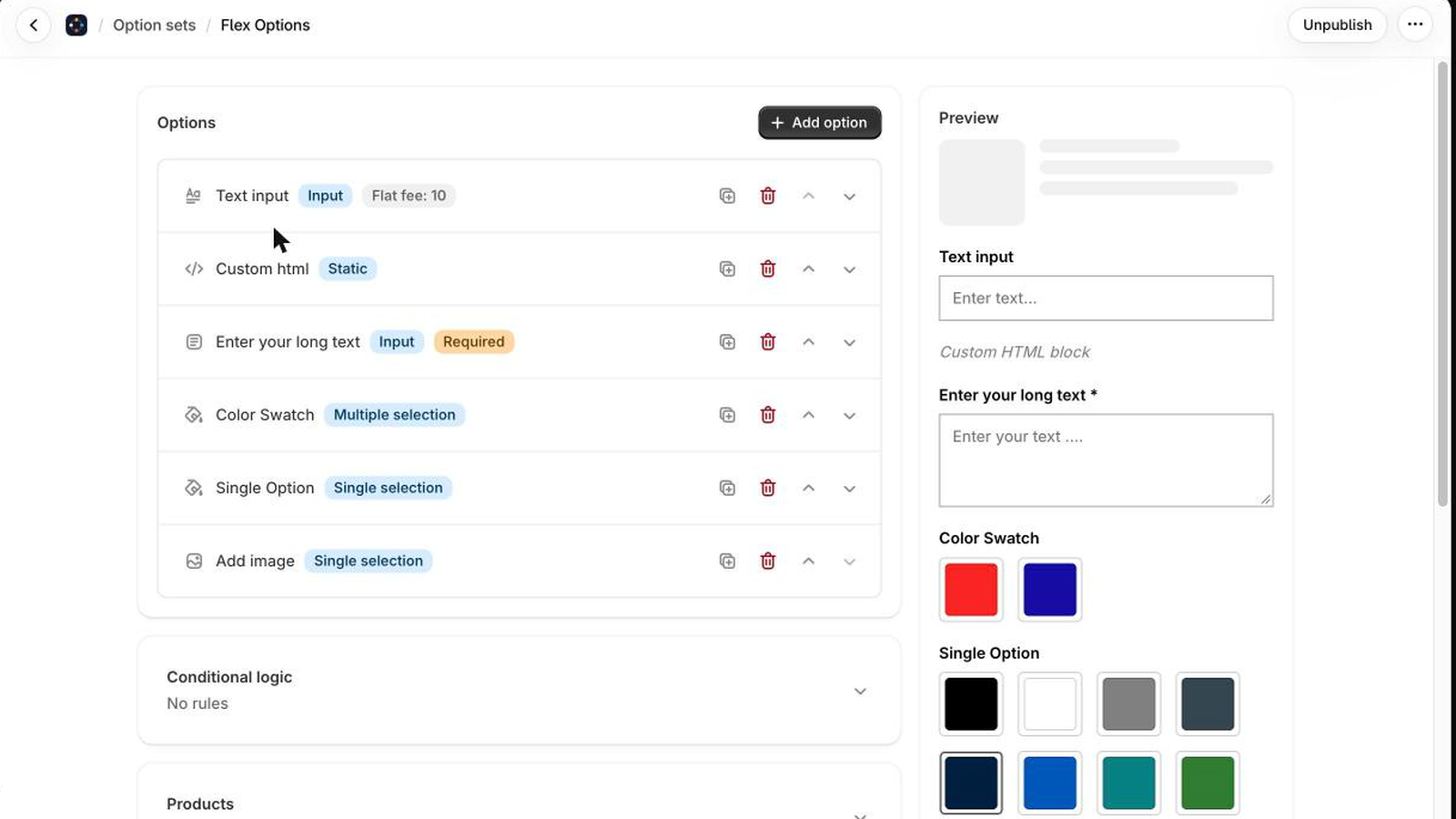
Optivo option set editor with a live preview of the options
20 option types
No variants
Charged at checkout
New on the Shopify App Store

Product options without the variant mess

Engraving, swatches, dates, checkboxes and add-on prices on any product. Choices are saved on the cart line, so your catalogue keeps only the SKUs you built.
Start with
Free plan
Upgrade from
$9.99 / month
crossmenu