You need any paid Shopify plan and an Online Store 2.0 theme (Dawn, or any theme released since mid-2021). Optivo’s own Free plan is separate from your Shopify plan.
Tip: The app embed is off after install, which is how Shopify handles every app embed. Until you turn it on, product pages show no option fields. Inside Optivo, Storefront setup has a button that opens the theme editor on this panel.
App embed settings belong to one theme. If you work on an unpublished theme, turn the embed on in that theme too. If your theme has no App embeds section, it is a vintage theme and needs to be replaced with an Online Store 2.0 theme.
Full guide: Install and turn it on.
An option set is a group of options that belong together, such as Gift options. One set is usually reused on many products. This example adds a $5 gift wrap and an engraving charged per character.
Tip: Publishing is what sends the prices to Shopify checkout. A draft set never shows on your store.
Open the product page to check it: the fields appear near the add-to-cart button with a running price, and the cart line shows the choices and the added price.
Full guide: Build your first option set.
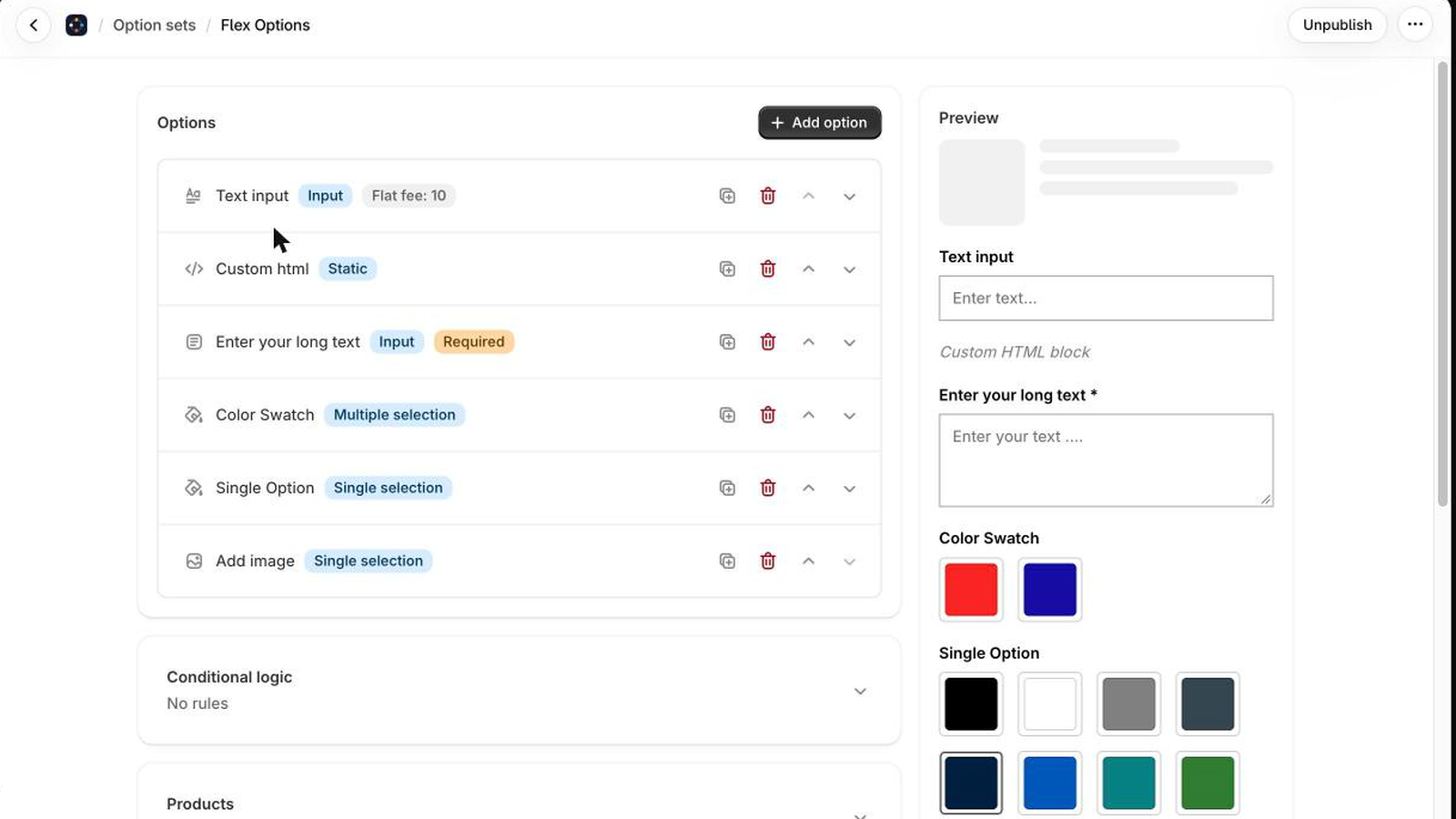
Optivo has 20 option types. The type decides what the customer sees, how the answer looks on the order, and which pricing rules it can use.
Use radio buttons for two to four choices, a dropdown for five or more, and a swatch when the choice is visual, such as a colour or a fabric.
Whatever the type, the answer is saved as a line item property on the cart line, and no type ever creates a product variant. If you move to a smaller plan, options you already built keep working; you just cannot add new ones of a type your plan does not include.
Full guide: Choosing a type.
Optivo changes what a customer pays at checkout with a Shopify Function. It does not change your product’s price and does not create variants.
The price shown on the product page is a preview. The amount charged is worked out at checkout from the set you published, using the same rounding, so the two always match.
Tip: Add-ons are charged per unit. A $5 gift wrap on a quantity of 3 adds $15. Discounts and taxes then apply to the line as Shopify normally handles them.
Full guide: How pricing works.
Conditional rules let one answer control another option: When [option] is [value], show / hide / require / make optional [another option].
Example: a Personalisation checkbox with the rules “When Personalisation is Yes, show Engraving text”, “… require Engraving text” and “… show Font”. Unticked, the customer sees one checkbox; ticked, both fields appear and the engraving is required.
Tip: Put the option that triggers a rule above the options it reveals, and test both the ticked and unticked paths before you publish.
Full guide: Show and hide options.
Optivo has a Free plan. Advance ($9.99/month) adds date pickers, swatches and advanced pricing, and Professional ($19.99/month) adds unlimited option sets, styling themes, live previews and custom CSS and HTML. Yearly billing saves 20%. Shopify bills the plan on your Shopify invoice. See all plans on the Optivo page.
To uninstall, go to Settings → Apps and sales channels in your Shopify admin. Optivo never writes code into your theme, so nothing is left behind:
Past orders keep the options customers chose, because they are saved on the order itself. If you reinstall later, you will need to build your option sets again and turn the app embed back on.
Full guide: Uninstalling.