Plugins are what make WordPress so flexible. A plain WordPress install is a blog; add the right plugins and it becomes a store, a membership site, a booking system or a portfolio. The wrong plugins, though, can slow your site down or open security holes.
This guide explains how plugins work, how to choose good ones, which types most sites need, and how to manage them safely.
A plugin is a package of code that adds a feature to WordPress without changing WordPress itself. You install it from your dashboard under Plugins → Add New, activate it, and the feature appears. Deactivate it and the feature goes away, while your content stays.
Because plugins are separate from WordPress core and your theme, you can update WordPress and switch themes while keeping the same features.
There are tens of thousands of plugins. Before you install one, check these signs of quality:
Tip: Avoid “nulled” or pirated premium plugins. They often contain malware, and they never receive security updates.
A security plugin adds a firewall, blocks repeated login attempts and scans for malware. Pair it with strong passwords and two-factor login for administrators.
Backups are your safety net. Choose a plugin that backs up both files and the database automatically and stores copies off your server, for example in cloud storage.
An SEO plugin lets you set page titles and meta descriptions, creates an XML sitemap and adds structured data so search engines understand your content.
Caching plugins save ready-made versions of your pages so they load faster. Many also compress images and delay scripts that are not needed straight away.
Contact forms, quote requests and surveys all need a form plugin. Look for spam protection and email notifications.
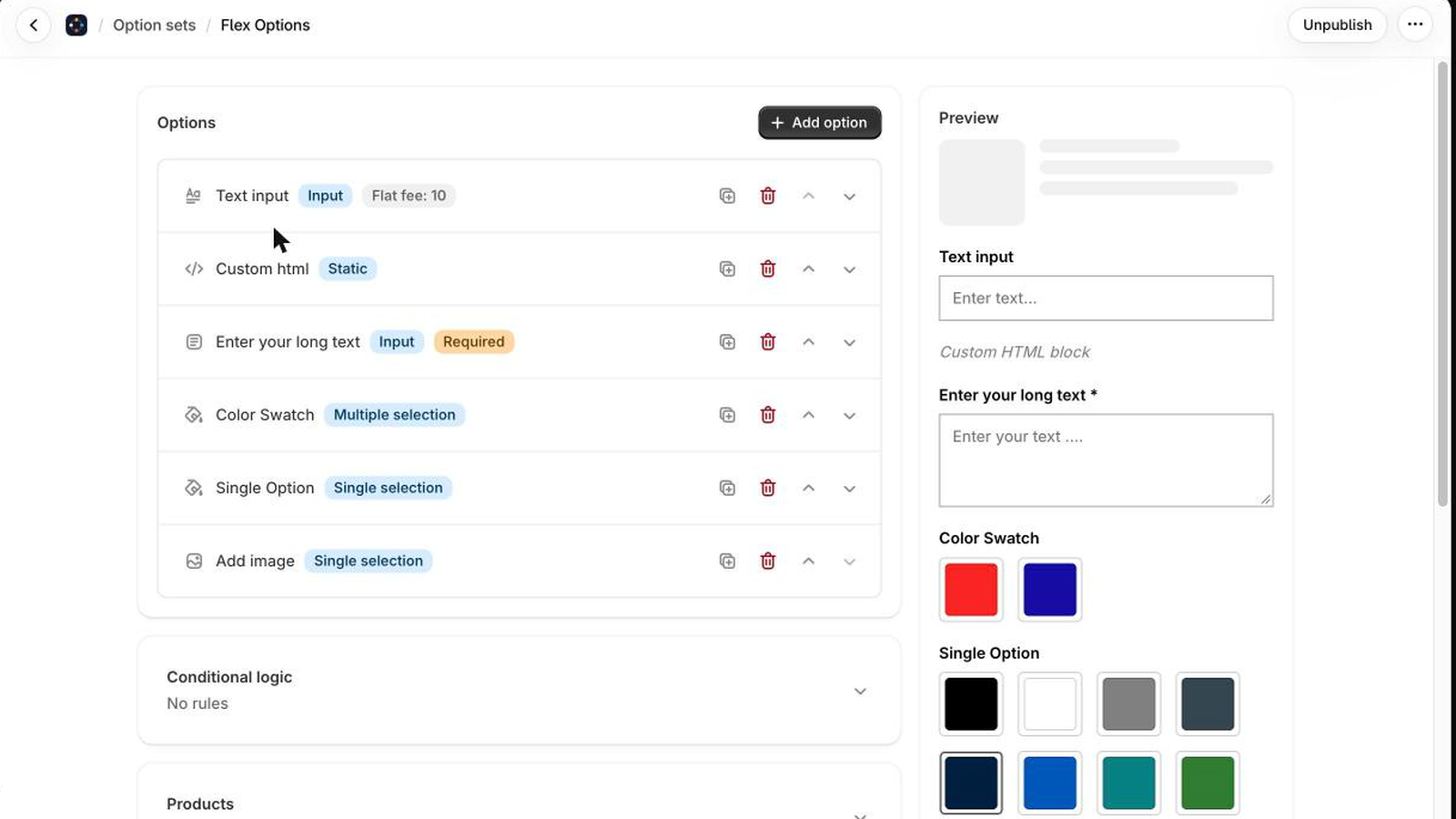
Custom fields let you store structured information, such as a product specification, a team member’s role or an event date, and show it anywhere in your design. Secure Custom Fields (SCF) is a popular choice for this.
If you use SCF and need image galleries, SCF Gallery adds a gallery field with slider, lightbox and masonry layouts.
There is no magic number. Twenty well-built plugins can run faster than three badly built ones. What matters is quality and whether each plugin earns its place. Review your list every few months and remove anything you no longer use, after checking that nothing on your site depends on it.
Many free plugins are excellent. Premium plugins usually add advanced features, priority support and regular updates paid for by the license fee. Most premium WordPress plugins are licensed under the GPL, the same license as WordPress. A paid license typically gives you updates and support for a set period, often one year.
Updates fix bugs and close security holes, so do not ignore them. To update without surprises:
Choose plugins like you would hire a contractor: check their track record, make sure they will be around to support you, and only bring in the ones you need. Do that, and plugins will make your WordPress site faster to build and easier to run.
Have a question about a plugin or need a custom one built? Get in touch with our team.